On this page
RocPortal Help
The RocPortal is the cloud-based account and license-management portal for Rocscience software. It gives your organization a central hub to manage licenses, users, and devices. In the RocPortal you'll find the following areas, depending on your role:
- Home - This dashboard shows you a quick overview of your account, licenses, and organization(s).
- Licenses - All information on your software licenses is found in here, including license type, license status, term length, and current usage details. Consumers will only see licenses assigned to them. Admin users will see all licenses belonging to an organization, and can manage assignments from this tab. Users with the Billing role can also renew licenses from here.
- Users - This tab is available to Admins to view all users in an organization, as well as manage their roles, assigned licenses, and view their individual usage information.
- Program Downloads - Here you can download the program installers for all of the licenses assigned to you, or to an organization if you are an Admin.
- Trials - Visit this section to discover available program trials, or view ongoing and past trials.
Licenses
You may have applied the Identity String more than once to your system, which can cause this licensing error.
To fix this:
- Open this page on your system: Thales Sentinel ACC: Configuration
- In the search parameters box, please delete any entries that include “@cls.rocscience.com” in the domain name.
- Click Submit.
- Go back to RocPortal and click Authorize Device button.
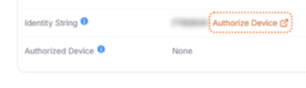
This will authorize your device to use the software
You should be able to run any software program to which you are assigned.Note: If you encounter any errors, please send us a screenshot of the error and the diagnostic file in step 3 of the support form.
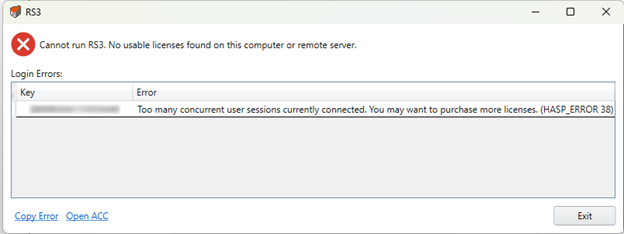
This indicates that all seats on this license are in use. Admin and Owner roles can view active sessions in RocPortal by going to the Licenses tab, locating the license/program to check, selecting Manage, and Usage in the top-right corner. If the number of active sessions does not match the available seats, please complete our technical support form for assistance. Otherwise, you may need to purchase additional seats.
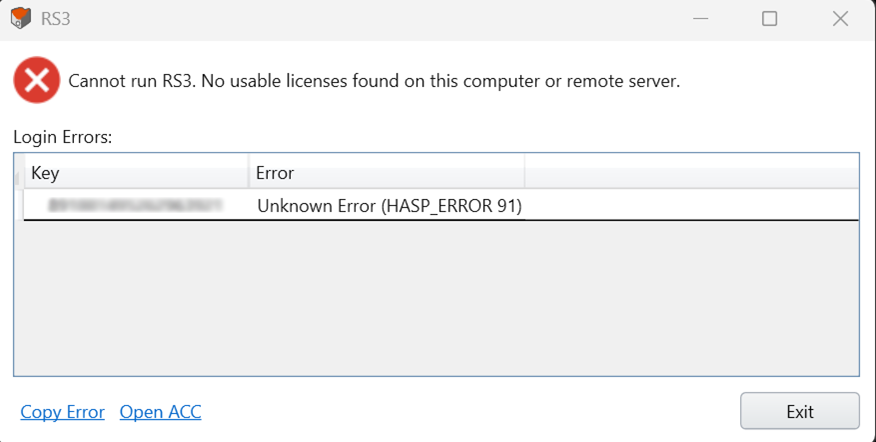
This error means that you attempted to use the program on a machine by using an identity string that has already been used on another device.
To fix this, please log in to your RocPortal account on your new computer and go to Home > My Account > View Account. Next to Identity String, click on Revoke then click on Authorize Device. Wait a minute and then try to run the software again.
There is a possibility that you will face this error message: “Installation of the client identity failed because a client identity that uses the same server is already installed.” Please refer to this FAQ to resolve the issue.
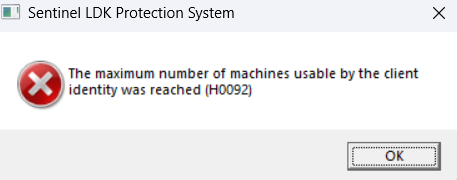
This error means that you attempted to use the program on a machine by using an identity string that has already been used on another device.
To fix this, please log in to your RocPortal account on your new computer and go to Home > My Account > View Account. Next to Identity String, click on Revoke then click on Authorize Device. Wait a minute and then try to run the software again.
There is a possibility that you will face this error message: “Installation of the client identity failed because a client identity that uses the same server is already installed.” Please refer to this FAQ to resolve the issue.
If you purchased new licenses through the cart with a credit card, the licenses will immediately be in your RocPortal account under the Licenses tab. If you don't see them right away, please logout and log back in to your account. If you purchased through a sales representative, a bank wire transfer, or cheque, the licenses will be delivered when payment has been received. When you renew an expired license, as soon as payment is received, the license's status will be updated, and you will be able to continue using it. If you completed the renewal through the cart with a credit card, you will have access immediately. If you renew before the license expires, you will have no disruptions to the license.
Users with the Billing role will see the option to renew licenses. Under the Licenses tab, select Renew your Plan on the desired license or Renew Now at the top of the Licenses page to select all licenses expiring within 90 days. These options will direct you to the cart where you can complete the transaction.
To reduce the number of seats at renewal, a new license must be issued because there may be more than the number of allowed users presently assigned to the user pool. To avoid any disruptions to the access of the software, please contact us.
Select the Licenses tab and expand the chosen license card. Under Current License Usage, click View Details to see the program usage chart, active sessions, and detachments.
Users
Owner: The Owner role is given to the user who creates the organization in the RocPortal. It is not assignable.
Admin: Users with the Admin role can grant users with the Consumer role in their organization access to licenses. They can also assign and unassign user devices, invite or remove users, and assign roles.
Billing: Users with the Billing role can renew licenses (Renew Now button is displayed).
Consumer: Users with the Consumer role can be assigned to a license.
The user that creates the organization automatically has the Owner role, which allows them to invite and assign user permissions. The Admin role is an assignable role which allows a user to have the same invite/assign capabilities.
Users can be assigned to a license in two ways:
By License:
- Select the Licenses tab.
- Select Manage on the chosen license.
- On the license’s detail page, select Assign Users
- The Assign Users modal allows you to search and select one or multiple users in your organization.
- Select Assign.
By User:
- Select the Users tab.
- Click on a user’s name to open the user details page. Here you can see a list of licenses available for assignment.
- Select Assign on an applicable license and confirm.
If your user pool is full, you can unassign user devices that no longer need to access the license to make space in your user pool for new users. Alternatively, if all the users need to be able to access the license frequently, you can purchase an additional seat, which will add 5 more spaces to the license's user pool.
If a license has no remaining user assignments, you can purchase a seat at a prorated cost. This will add 5 spaces to the licenses user pool and add 15 more user assignments to be used for the remainder of the lease term. Note: Adding an additional seat at a prorated cost, does not prorate the number of additional spaces in the user pool or the number of user assignments.
Only the Owner or a user with the Admin role can remove users. Removed users lose all license visibility and access.
To remove a user:
- Select the Users tab.
- In the list of users, select the user you want to remove by marking the checkbox.
- Click on the Remove option on the top-right of the page and confirm.
Accounts
- Go to My Account.
- Next to Identity String, select Revoke.
- Check “Yes, I’d like to revoke authorization” and select Revoke Authorization in the modal.
- A new identity string will be created. Ensure you are using the device you want to authorize, and select Authorize Device.
Because a RocPortal account is tied to one device at a time, if you wish to alternate using a license on two different machines (say a work laptop and a home computer for example), there are a few different methods of accessing the software. 1) You can remote in to the computer that is tied to the license, or 2) create a second RocPortal account with a new email address and assign both of your user devices to the license's user pool.
Programs
Cloud-hosted licenses periodically check the server to see if the program is in use or not, which requires an internet connection. If your internet disconnects, the program will try to validate the connection after 3-5 minutes. If no connection is found, the program will show a warning and then re-check the license again in 3-5 minutes. Should no internet connection be found the second time, and the license cannot be verified, a message will popup saying, “No usable license found.” The application will prompt you to save your work and will shut down.
Your version of runtime needs to be updated. Please download the latest runtime version from this page.
If you need to use your license offline, you can temporarily detach a license from the cloud for a defined period of time (maximum of 1 month). This detachment must take place while connected to internet.
You need to have a software program downloaded first. Install the program and then click “Authorize Device” again.
Trials
Please log out and log back in to your RocPortal account. Your account details are updated every time you login.
Trial licenses cannot be assigned. Other users can request their own trials in the Trials tab.